--Harry S Truman
Back to Markwell's Home
|
|
|
“There is nothing new in the world except the history you do not know.” --Harry S Truman Back to Markwell's Home |
| Markwell's FAQ Update |
| Click on a topic to see the question and answer. | Questions with an asterisk (*) are on a separate page. |
 | How do I convert a street address to latitude/longitude? |
| Website | Displays Coodinates as... | Comments |
| GPS Visualizer | Deg/Min/Sec Decimal Degress | Very |
| Multimap | Deg, Decimal Minutes Decimal Degress | Very Easy to Use |
| Maporama | Decimal degrees Deg/Min/Sec | World-Wide addresses! |
| Geocode (US) | Decimal degrees Deg/Min/Sec | It appears that Geocode Test Driving Eagle is now enforcing the upper limit of 50 requests without purchasing their product. |
| Some of these sites show the coordinates in decimal format. How do I convert? |
| Start with the number in decimal degrees | Positive is north, and take the whole number | Then take the remainder times 60 | Round to three decimals | Therefore the latitude for the Sears Tower in Chicago is |
| 41.878928 | 41.xxxxxx = N41° | 0.878928 x 60 = 52.73568 | 52.736 | N41° 52.736 |
 W 087° 38.18538.185 ÷ 60 = 0.636417tag it onto the degrees to get 87.636417°“West” is negative: -87.636417°
Fizzy Magic has a nice converter here called FizzyCalc, which will not only change coordinate units, but also calculate distance between two sets of coordinates and project a coordinate from bearing and distance from a known coordinate.
To carry it further to seconds beyond minutes, you do the same thing with the minutes that you did with the degrees. Take the integer off of the minutes and multiply the remaining decimal times 60. That will give you seconds.
If you have Degrees, Minutes and Seconds...
W 087° 38.18538.185 ÷ 60 = 0.636417tag it onto the degrees to get 87.636417°“West” is negative: -87.636417°
Fizzy Magic has a nice converter here called FizzyCalc, which will not only change coordinate units, but also calculate distance between two sets of coordinates and project a coordinate from bearing and distance from a known coordinate.
To carry it further to seconds beyond minutes, you do the same thing with the minutes that you did with the degrees. Take the integer off of the minutes and multiply the remaining decimal times 60. That will give you seconds.
If you have Degrees, Minutes and Seconds...
| Why WGS-84 and HDD(D)° MM.MMM datum and format? |
| I enetered the coordinates into my GPS for a new cache, but the map doesn't match up with the actual location. What am I doing wrong? |
| How do I find caches along a route? |
| What are "Additional Waypoints" and how do I use them? |
| What are "signature items?" |
| What's a spoiler? |

| How are Waypoint Names Generated and What Do They Mean? |
|
| How do I make the ° symbol when typing? |
| Which GPS unit should I buy? |
| Should I set my GPS for True or Magnetic North? |
|
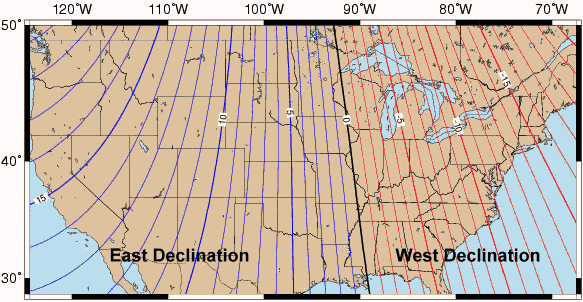
Scenario 1: simple, short distance Here in Chicago, I have a cache 750 feet away. My GPS is set to True North, and the GPS says that the cache is 45°. So I take out my trusty compass and shoot a bearing of 45° and walk for 750 feet. BUT WAIT, I didn't take into account the magnetic declination, which around here is somewhere between 2 and 3 degrees (let's say 3). According to my calculations, after traveling 750 feet, I'll be off 41 feet. It's not a huge deal - many GPS units are off by that much.  |
Scenario 2: bigger declination and longer distance... I'm hiking on Cape Cod, and there's a cache 3 miles away. My GPS is set to True North, and the GPS says that the cache is 45°. So I take out my trusty compass and shoot a bearing of 45° and walk for 3 miles. BUT WAIT, I didn't take into account the magnetic declination, which around Cape Cod is somewhere around -16 degrees. With that much difference in the declination and traveling that far, I'd be off by 0.78 miles.  |
| What do I need a magnetic compass for? |
Step 1

Step 2

Step 3

I think I know how to use a compass now: 1) use gps to guide you to the general location of
the cache, 2) retrieve bearing from gps, 3) set compass to bearing and follow the arrow?
Quoted from "Clay" from Pontiac, MI
That's it! After you've walked the aprox. distance your gpsr said, you should be in the location of the cache. If you have trouble finding it, walk a way, take
another bearing, and try it again. Once you get to the spot, think,"OK, if I was going to hide something 'here', where would I put it." That's where you will usually
find it.
Back to the top.
| How many feet are in 0.001 minutes? |
 It depends. The answers are different for Latitude and Longitude. Latitude lines are also called "Parallels." The circle the globe at a constant distance from each other. Therefore, the answer for Latitudes is constant: 6.074 feet.
However, the lines of Longitude all run from pole to pole, converging as you get closer to the poles. At the North Pole, the distance between E/W 0° and E/W 180° could be a matter of inches depending on how far away from the actual pole you are. At the equator, it's halfway around the world - about 12,500 miles.
So, what's the distance between 0.001 minutes at my latitude? The following table was taken from an answer in the General Forums. The Degrees are the farthest column to the left, and the minutes go across the top. Find your degree/minute combination, and the number in that cell is the distance between 0.001 minutes in feet.
It depends. The answers are different for Latitude and Longitude. Latitude lines are also called "Parallels." The circle the globe at a constant distance from each other. Therefore, the answer for Latitudes is constant: 6.074 feet.
However, the lines of Longitude all run from pole to pole, converging as you get closer to the poles. At the North Pole, the distance between E/W 0° and E/W 180° could be a matter of inches depending on how far away from the actual pole you are. At the equator, it's halfway around the world - about 12,500 miles.
So, what's the distance between 0.001 minutes at my latitude? The following table was taken from an answer in the General Forums. The Degrees are the farthest column to the left, and the minutes go across the top. Find your degree/minute combination, and the number in that cell is the distance between 0.001 minutes in feet.
| Vdeg min> | 0 | 5 | 10 | 15 | 20 | 25 | 30 | 35 | 40 | 45 | 50 | 55
| 26° | 5.46 | 5.46 | 5.45 | 5.45 | 5.44 | 5.44 | 5.44 | 5.43 | 5.43 | 5.42 | 5.42 | 5.42 | 27° | 5.41 | 5.41 | 5.40 | 5.40 | 5.40 | 5.39 | 5.39 | 5.38 | 5.38 | 5.38 | 5.37 | 5.37 | 28° | 5.36 | 5.36 | 5.35 | 5.35 | 5.35 | 5.34 | 5.34 | 5.33 | 5.33 | 5.33 | 5.32 | 5.32 | 29° | 5.31 | 5.31 | 5.30 | 5.30 | 5.30 | 5.29 | 5.29 | 5.28 | 5.28 | 5.27 | 5.27 | 5.26 | 30° | 5.26 | 5.26 | 5.25 | 5.25 | 5.24 | 5.24 | 5.23 | 5.23 | 5.22 | 5.22 | 5.22 | 5.21 | 31° | 5.21 | 5.20 | 5.20 | 5.19 | 5.19 | 5.18 | 5.18 | 5.17 | 5.17 | 5.17 | 5.16 | 5.16 | 32° | 5.15 | 5.15 | 5.14 | 5.14 | 5.13 | 5.13 | 5.12 | 5.12 | 5.11 | 5.11 | 5.10 | 5.10 | 33° | 5.09 | 5.09 | 5.08 | 5.08 | 5.07 | 5.07 | 5.07 | 5.06 | 5.06 | 5.05 | 5.05 | 5.04 | 34° | 5.04 | 5.03 | 5.03 | 5.02 | 5.02 | 5.01 | 5.01 | 5.00 | 5.00 | 4.99 | 4.99 | 4.98 | 35° | 4.98 | 4.97 | 4.97 | 4.96 | 4.96 | 4.95 | 4.94 | 4.94 | 4.93 | 4.93 | 4.92 | 4.92 | 36° | 4.91 | 4.91 | 4.90 | 4.90 | 4.89 | 4.89 | 4.88 | 4.88 | 4.87 | 4.87 | 4.86 | 4.86 | 37° | 4.85 | 4.85 | 4.84 | 4.83 | 4.83 | 4.82 | 4.82 | 4.81 | 4.81 | 4.80 | 4.80 | 4.79 | 38° | 4.79 | 4.78 | 4.78 | 4.77 | 4.76 | 4.76 | 4.75 | 4.75 | 4.74 | 4.74 | 4.73 | 4.73 | 39° | 4.72 | 4.71 | 4.71 | 4.70 | 4.70 | 4.69 | 4.69 | 4.68 | 4.68 | 4.67 | 4.66 | 4.66 | 40° | 4.65 | 4.65 | 4.64 | 4.64 | 4.63 | 4.62 | 4.62 | 4.61 | 4.61 | 4.60 | 4.60 | 4.59 | 41° | 4.58 | 4.58 | 4.57 | 4.57 | 4.56 | 4.56 | 4.55 | 4.54 | 4.54 | 4.53 | 4.53 | 4.52 | 42° | 4.51 | 4.51 | 4.50 | 4.50 | 4.49 | 4.48 | 4.48 | 4.47 | 4.47 | 4.46 | 4.45 | 4.45 | 43° | 4.44 | 4.44 | 4.43 | 4.42 | 4.42 | 4.41 | 4.41 | 4.40 | 4.39 | 4.39 | 4.38 | 4.38 | 44° | 4.37 | 4.36 | 4.36 | 4.35 | 4.34 | 4.34 | 4.33 | 4.33 | 4.32 | 4.31 | 4.31 | 4.30 | 45° | 4.29 | 4.29 | 4.28 | 4.28 | 4.27 | 4.26 | 4.26 | 4.25 | 4.24 | 4.24 | 4.23 | 4.23 | 46° | 4.22 | 4.21 | 4.21 | 4.20 | 4.19 | 4.19 | 4.18 | 4.17 | 4.17 | 4.16 | 4.16 | 4.15 | 47° | 4.14 | 4.14 | 4.13 | 4.12 | 4.12 | 4.11 | 4.10 | 4.10 | 4.09 | 4.08 | 4.08 | 4.07 | 48° | 4.06 | 4.06 | 4.05 | 4.04 | 4.04 | 4.03 | 4.02 | 4.02 | 4.01 | 4.00 | 4.00 | 3.99 | 49° | 3.98 | 3.98 | 3.97 | 3.96 | 3.96 | 3.95 | 3.94 | 3.94 | 3.93 | 3.92 | 3.92 | 3.91 | 50° | 3.99 | 3.98 | 3.96 | 3.94 | 3.96 | 3.94 | 3.93 | 3.94 | 3.93 | 3.92 | 3.94 | 3.92
| 51° | 3.89 | 3.89 | 3.89 | 3.87 | 3.88 | 3.87 | 3.87 | 3.84 | 3.84 | 3.85 | 3.84 | 3.83
| 52° | 3.80 | 3.81 | 3.81 | 3.79 | 3.80 | 3.79 | 3.79 | 3.76 | 3.76 | 3.75 | 3.74 | 3.74
| 53° | 3.74 | 3.74 | 3.71 | 3.71 | 3.69 | 3.69 | 3.70 | 3.66 | 3.66 | 3.67 | 3.66 | 3.66
| 54° | 3.63 | 3.65 | 3.62 | 3.63 | 3.61 | 3.61 | 3.59 | 3.59 | 3.58 | 3.58 | 3.55 | 3.55
| 55° | 3.58 | 3.52 | 3.52 | 3.52 | 3.52 | 3.52 | 3.51 | 3.50 | 3.51 | 3.50 | 3.48 | 3.47
| 56° | 3.45 | 3.44 | 3.44 | 3.44 | 3.43 | 3.43 | 3.41 | 3.41 | 3.38 | 3.41 | 3.38 | 3.38
| 57° | 3.38 | 3.35 | 3.37 | 3.34 | 3.35 | 3.33 | 3.33 | 3.33 | 3.33 | 3.30 | 3.30 | 3.28
| 58° | 3.28 | 3.27 | 3.27 | 3.27 | 3.24 | 3.25 | 3.24 | 3.24 | 3.24 | 3.21 | 3.24 | 3.21
| 59° | 3.21 | 3.18 | 3.18 | 3.16 | 3.18 | 3.15 | 3.15 | 3.15 | 3.15 | 3.13 | 3.11 | 3.11
| 60° | 3.10 | 3.08 | 3.08 | 3.08 | 3.05 | 3.07 | 3.05 | 3.05 | 3.02 | 3.04 | 3.02 | 3.02
| 61° | 3.02 | 2.99 | 2.99 | 2.97 | 2.99 | 2.96 | 2.97 | 2.97 | 2.96 | 2.96 | 2.91 | 2.92
| 62° | 2.91 | 2.91 | 2.91 | 2.87 | 2.91 | 2.85 | 2.85 | 2.84 | 2.85 | 2.82 | 2.82 | 2.82
| 63° | 2.80 | 2.80 | 2.80 | 2.79 | 2.79 | 2.75 | 2.75 | 2.77 | 2.75 | 2.75 | 2.75 | 2.75
| 64° | 2.72 | 2.72 | 2.70 | 2.68 | 2.70 | 2.68 | 2.66 | 2.68 | 2.66 | 2.64 | 2.62 | 2.61
| 65° | 2.62 | 2.62 | 2.61 | 2.61 | 2.57 | 2.59 | 2.59 | 2.55 | 2.57 | 2.57 | 2.53 | 2.51
| |
| How can I calculate the distance between two sets of coordinates? |
 So - how do I use the Pythagorean Theorem to calculate distances?Northing 1="N1"
Easting 1="E1"
Northing 2="N2"
Easting 2="E2"
So - how do I use the Pythagorean Theorem to calculate distances?Northing 1="N1"
Easting 1="E1"
Northing 2="N2"
Easting 2="E2"
Sqrt((N1-N2)²+(E1-E2)²)/1000=Distance in Kilometers
To get it in miles: divide your answer by 1.6093
| Point A: N 41° 36.455 W 088° 12.221 Point B: N 41° 39.040 W 088° 15.328 |
These two are exactly 4.00 miles apart, using both the Great Circle Calculation and the Pythagorean Calculation. |
| Point A: N 41° 36.455 W 088° 12.221 Point C: N 35° 08.073 W 085° 21.505 |
Great Circle Distance: 473.01 miles Pythagorean Distance: 472.23 miles |
| What do the different ratings mean, and how should I rate the cache I placed? |
| Difficulty | Terrain | ||
 | Easy In plain sight or can be found in a few minutes of searching. |
 | Handicapped accessible Terrain is likely to be paved, is relatively flat, and less than a ½ mile hike is required. |
| Average The average cache hunter would be able to find this in less than 30 minutes of hunting. |
| Suitable for small children Terrain is generally along marked trails, there are no steep elevation changes or heavy overgrowth. Less than a 2 mile hike required. |
| Challenging An experienced cache hunter will find this challenging, and it could take up a good portion of an afternoon. |
| Not suitable for small children The average adult or older child should be OK depending on physical condition. Terrain is likely off-trail. May have one or more of the following: some overgrowth, some steep elevation changes, or more than a 2 mile hike. |
| Difficult A real challenge for the experienced cache hunter - may require special skills or knowledge, or in-depth preparation to find. May require multiple days / trips to complete. |
| Experienced outdoor enthusiasts only Terrain is probably off-trail. Will have one or more of the following: very heavy overgrowth, very steep elevation (requiring use of hands), or more than a 10 mile hike. May require an overnight stay. |
| Extreme A serious mental or physical challenge. Requires specialized knowledge, skills, or equipment to find cache. | | Requires specialized equipment and knowledge or experience, (boat, 4WD, rock climbing, SCUBA, etc) or is otherwise extremely difficult. |
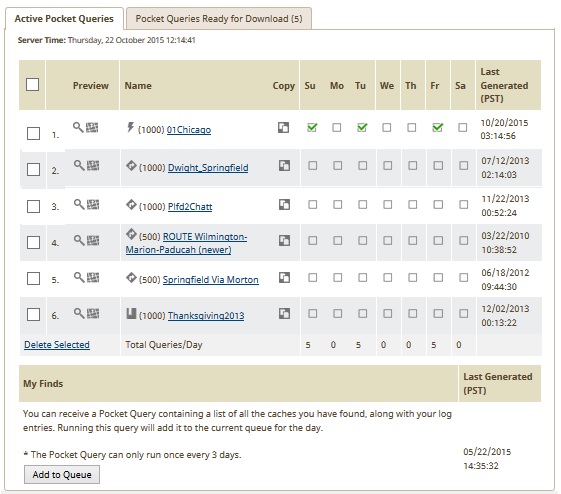
| What the heck are Pocket Queries? How do I use them? |
| Pocket Queries Hand-entering geocache coordinates is tedious, and you run the risk of developing repetitive motion injuries if you hunt more than a few caches in a day. With a Pocket Query you can download up to 1,000 specifically defined geocache waypoints directly to your GPS in a flash! |
| Want to see the difference between LOC and GPX? Click here |
| UPDATED INFORMATION - May 2010 |
|
| Why can't I get my Pocket Queries? |
|
| I'm not getting ANY e-mail from GC.com - or - I'm not getting my Pocket Query results |
|
| I get what Pocket Queries are, but I still need a little help... |
| Can I get a list of Archived caches in my Pocket Queries? |
| What are Attributes, and how are they used? |
 Attributes are characteristics of a cache. The owner of a cache can set up to 10 attributes on their cache, and these can take the form of YES or NO. For example, if the cache is not recommended for kids, the owner can choose the Kid Friendly icon, and select NO. The result is an icon on the cache page that looks like the icon to the right. At the same time, it the cache could be best done at night to take in the fabulous view of the Aurora Borealis. That cache would need
  Recommended at Night attribute.
| Conditions (Yes, No) |
Facilities (Yes, No) |
Hazards (Present, Not Present) |
Permissions (Allowed, Not Allowed) |
Special Equipment (Required, Not Required) |
Special Attribute (Yes) |
||||||||||||||||||||||||||||||||||||||||||||||||||||||||||||||||||||||||||||||||||||||
|
|
|
|
|
|
| How do Attributes work with Pocket Queries? - See the answer on PQ page. |
| I need help logging a Travel Bug. What do I do? |
People used to get a toy from a cache and place it in another cache.| Step One | Log the cache that you found the bug in. It would be nice if you also mentioned on the cache page that you found the bug and grabbed it, but it is not necessary. | |
| Step Two |  Go to the Groundspeak website at Groundspeak.com, or click the "Track Travel Bugs" icon on the left side of the screen. There you will see a scarab with a entry field. Enter the bug's 6 digit code in that field and click the arrow.
The six digit code is the "Secret Code" that allows only people who have actually handled the bug to make notes or create movement for the bug. Keep this code a secret - making sure that it's not in the log or in any photos. Unscrupulous cachers could potentially wreak havoc by grabbing a bug they never really had and moving it to a cache in India.You also might want to write the bug's number down in case you want to write a note to the bug page. When you put the bug back into play, you don't get the opportunity to tell part of the story unless you make a note. You'll need that number to be able to make a note on the page. Go to the Groundspeak website at Groundspeak.com, or click the "Track Travel Bugs" icon on the left side of the screen. There you will see a scarab with a entry field. Enter the bug's 6 digit code in that field and click the arrow.
The six digit code is the "Secret Code" that allows only people who have actually handled the bug to make notes or create movement for the bug. Keep this code a secret - making sure that it's not in the log or in any photos. Unscrupulous cachers could potentially wreak havoc by grabbing a bug they never really had and moving it to a cache in India.You also might want to write the bug's number down in case you want to write a note to the bug page. When you put the bug back into play, you don't get the opportunity to tell part of the story unless you make a note. You'll need that number to be able to make a note on the page. |  |
| Step Three | Once you click the arrow, you'll be taken to the bug's page. Take the time to read any goals that the bug might have. Click the "Found it? Log it!" link in the upper right hand corner. |  |
| Step Four | On the form, make sure the drop down says "I have it!", then you'll need to enter that 6 digit code AGAIN as a verification. You also have the opportunity to have the system notify you each time this bug moves, and make any and all comments you feel appropriate. Once you complete this step, the bug is in your "inventory." You can have multiple bugs in your inventory. If you just want to add to the story, or tell the portion of the story from when you picked up the bug to when you placed it, make sure the drop down says "Making a note". Sometimes, there is a quirk on the site that even when you're making a note, it will grab the bug. Just be away that this might happen. |  |
| Step Five | Take the bug out into the real world, photograph it, have fun, and eventually place it in a new cache - hopefully one that helps the bug on its mission. | |
| Step Six | Once the bug is placed in a real cache, go back to the Geocaching.com site for that cache and log your visit as normal. |  |
| Step Seven | As you're filling out the form for logging the cache, you have a new drop down at the bottom of the screen (this won't appear if you don't have any bugs in your inventory). Choose the bug you're dropping off. If you've been to the cache previously, you do not need to log this as a "Found it!" to drop off the bug. It can be done as a Post a Note or a Couldn't Find it! - although that doesn't make logical sense. Once you click the button Click to log your visit!, the bug will appear as being in that cache. Your job is done!!! |  |
| How come my Travel Bug isn't showing up in the Bug Gallery? |

| What are some of the common thoughts on Travel Bugs? |
| The Geocaching.com site limits uploaded pictures to 100K. How do I get my picture down to that size? |
 However, you can do something similar with cropping and resizing if you have a Windows PC (any version) with software already installed on your system. The program to use is the MS Paint, usually found under Programs, Accessories, Paint - or you can find it by going Start, Run, and typing pbrush in the run box.Once you're in the program, you can actually open up your digital pictures (or scanned picture) with this program. Most of the cameras and scanners can save the file as a JPG format. When MS Paint is started, Click File, Open, and choose the file type JPG or JPEG. Then select the right folder. You'll see a huge version of your really big image.Here's the important part!! Immediately do a File, Save As, and save it with a different name - so you don't lose your original pristine photo. Once you've saved it somewhere else, you can use this program's Stretch and Skew feature to shrink your image to within 100K. Go to Image, Stretch and Skew (or Ctrl-W), and change the percentages to some lower number for both the height and width (the same number). This will shrink the image to that percentage of the original size.But wait! You don't have to shrink the image by 50% to get a 50% reduction in file size. MS Paint uses a higher than regular compression. Shrinking a file size to say 60-75% of its original dimensions will most likely shrink the file size to about between 40-50%. Try out a few variations and see what happens. You can check the file size by highlighting it through "My Computer." Remember - Geocaching.com says 100K, but it really needs to be down below about 97K to work.
Last Updated: May 11 2010